
Explorer Patcher For Windows 11
Explorer Patcher, also referred to as Windows Explorer Patcher, is a free, open-source Windows utility designed to restore classic and ergonomic shell behavior on Windows 11. It focusses on restoring established interface features that Microsoft lost or restricted during the migration from Windows 10 to Windows 11.
Explorer Patcher works by modifying how Windows Explorer—the core shell responsible for the taskbar, Start menu, File Explorer, system tray, and window management—behaves at runtime. Instead of reinstalling Windows components or using unsupported registry hacks, Explorer Patcher carefully restores existing system logic, which is still available but disabled in recent Windows builds.
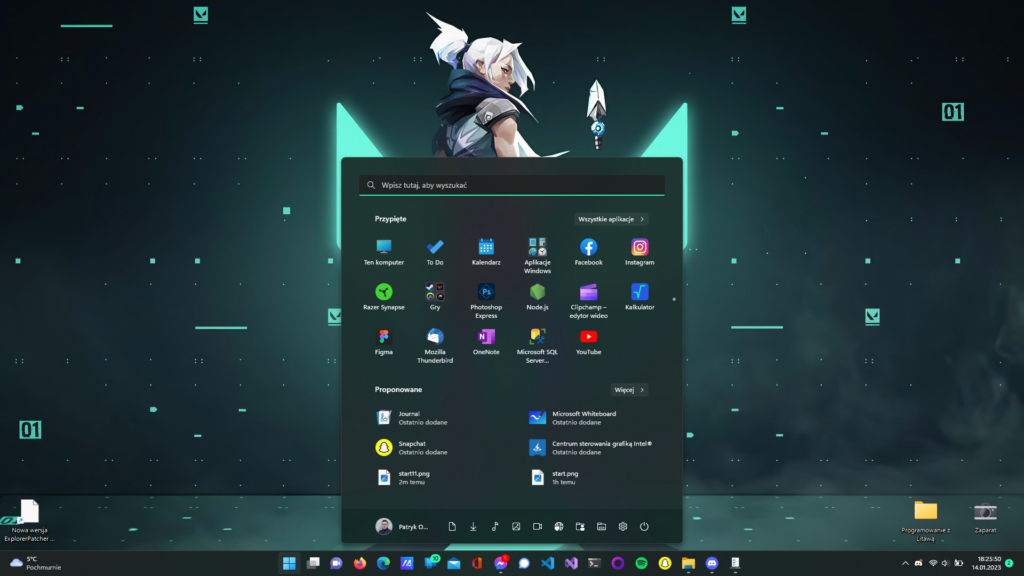
The project is freely maintained on GitHub and community-audited, allowing users to see how it works and how modifications are implemented. All configuration changes are user-controlled, reversible, and non-destructive. Explorer Patcher is primarily used by:
- Windows 10 users who upgraded to Windows 11 and lost productivity features
- Developers and IT professionals who rely on predictable UI behavior
- Power users managing multiple windows or displays
- Anyone dissatisfied with the Windows 11 taskbar and Start menu design
The program is free, safe, open-source, lightweight, and intended to keep the system stable while reinstating familiar processes.
Taskbar Enhancements in Explorer Patcher
The taskbar is the most affected component in Windows 11 and the most common reason users install Explorer Patcher. Explorer Patcher restores functionality by re-enabling the original taskbar engine and revealing configurable options that Microsoft has deleted from the default settings.
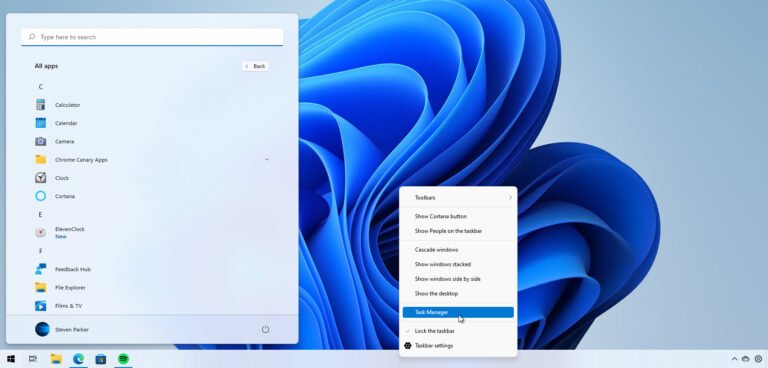
Classic Windows 10 Taskbar with Labels (Never Combine)
Explorer Patcher allows users to restore the Windows 10 taskbar style, including visible text labels and non-combined taskbar buttons. This setup offers immediate visual clarity, particularly when numerous windows of the same application are active.
Key capabilities include:
- Never combine taskbar buttons
- Display text labels alongside icons
- Predictable button ordering
- Improved window identification
This behaviour decreases cognitive strain and accelerates multitasking, especially in professional processes.
Taskbar Buttons, Density, and Icon Size Control
Explorer Patcher provides fine-grained control over how compact or expressive the taskbar appears. Users can customise the taskbar to fit their screen size, resolution, and visual preferences.
Options include:
- Small or large icon density
- Adjustable spacing between buttons
- Visibility control for labels and indicators
These parameters enable the taskbar to seamlessly resize from small laptop displays to ultrawide or high-DPI monitors.
Taskbar Dock Position (Top, Bottom, Sides – Supported Builds)
Unlike Windows 11, which has a fixed bottom taskbar, Explorer Patcher allows you to dock the taskbar in different positions on supported releases.
Supported configurations may include:
- Bottom (default)
- Top
- Left or right (build-dependent)
This versatility allows users to keep muscle memory and modify layouts for vertical monitors or specialised workstations.
Taskbar Context Menu Restoration
Windows 11 streamlined the taskbar’s right-click menu by removing direct access to utilities like Task Manager and system activities.
Explorer Patcher restores the classic taskbar context menu, placing essential commands exactly where experienced users expect them.
Benefits include:
- One-click access to Task Manager
- Faster system control
- Consistent behavior across displays
Taskbar Performance and Stability Impact
Explorer Patcher is designed to remain lightweight and predictable. It does not include background telemetry, advertising components, or unneeded services.
Performance characteristics:
- Minimal memory overhead
- Fast shell initialization
- No persistent background tasks
In many cases, users report improved responsiveness due to reduced UI overhead.
Start Menu Behavior and Controls in Explorer Patcher
Windows 11’s Start menu prioritises recommended content above program access. Explorer Patcher allows users to restore control over the Start menu’s behaviour and layout.
Start Menu Position (Left or Center)
Explorer Patcher allows users to align the Start menu based on personal preference or muscle memory.
Available options:
- Left-aligned Start (classic behavior)
- Center-aligned Start (Windows 11 default)
This adaptability helps to sustain navigation patterns developed over years of Windows use.
“Most Used” and Recents Tuning
Explorer Patcher gives you fine control over how commonly used programs and recent things show.
Users can:
- Adjust how many items are shown
- Reduce visual clutter
- Focus the Start menu on daily tools
The result effect is a Start menu that appears deliberate rather than promotional.
Start Menu Density and Animation Control
Excessive spacing and animation delays can make navigating slow. Explorer Patcher enables users to:
- Reduce visual density
- Control expansion behavior
- Improve keyboard-first navigation
These changes make the Start menu faster and more predictable in daily use.
File Explorer Improvements Using Explorer Patcher
File Explorer is a core productivity tool, and Windows 11 introduced several changes that impacted efficiency. Explorer Patcher restores functionality that prioritizes speed and clarity.
Restore Classic File Explorer Ribbon
Explorer Patcher allows users to hide the Windows 11 command bar and return to the classic Ribbon interface.
Advantages include:
- Immediate access to advanced file commands
- Reduced navigation friction
- Familiar layout for experienced users
Full Right-Click Context Menus in Windows 11
Windows 11 hides advanced context menu options behind additional clicks. Explorer Patcher restores full legacy menus for:
- Files
- Folders
- Desktop background
This avoids superfluous processes and accelerates regular file operations.
Navigation Pane Stability and View Discipline
Explorer Patcher improves navigation pane behaviour to ensure that folders open as expected and views remain consistent.
Benefits include:
- Fewer misclicks
- Reduced UI reflows
- Faster location retrieval
File Dialog Consistency Across Applications
Explorer Patcher aligns Open/Save dialog behavior across applications, reducing confusion when switching between software tools.
This consistency reduces mental overhead and increases process continuity.
System Tray, Clock, and Flyout Controls
Explorer Patcher restores fine control of the system tray and accompanying flyouts, which were simplified in Windows 11.

System Tray Alignment and Behavior
Tray menus can be aligned with their respective icons, ensuring consistent behaviour while working with system controls.
This decreases pointer travel and increases precision.
Clock Controls and Seconds Display
For time-sensitive workflows, Explorer Patcher allows:
- Displaying seconds on the clock
- Classic calendar flyouts
- Faster access to date and time controls
Flyout Behavior and Win+C Remapping
Explorer Patcher allows flyouts work consistently and allows you to remap Win+C to the clock flyout rather than unneeded features, which improves keyboard efficiency.
Multi-Monitor and Windowing Behavior
Multi-display workflows demand consistency. Explorer Patcher restores reliable behavior across all connected monitors.
Consistent Taskbars Across Displays
Explorer Patcher makes taskbars on all monitors functionally same, ensuring that icons, menus, and clocks behave properly.
Independent or Mirrored Clocks
Users can choose whether clocks and tray items are mirrored or independent on secondary displays.
Simple Window Switcher for Calm Multitasking
Explorer Patcher offers a streamlined window switcher that prioritises legibility and consistent selection, decreasing cognitive burden during task switching.
Auto-Hide and Multi-Monitor Stability
Auto-hide behavior is preserved across monitors, preventing disappearing taskbars and broken edge detection.
Productivity Enhancements and Power-User Controls
Aside from visual restoration, Explorer Patcher delivers modest efficiency enhancements that address daily friction areas in Windows 11. These improvements are not ornamental; they are intended to reduce repetitive activities, stabilise workflows, and keep user intent consistent across sessions. Explorer Patcher is especially useful for users who rely on keyboard navigation, consistent UI responses, and effective system controls.
Win+X Menu Curation (Power User Menu)
The Win+X menu—also known as the Power User menu—provides quick access to advanced system tools such as Device Manager, Disk Management, Terminal, and System Settings. Windows 11 altered parts of this menu, affecting discoverability and consistency.
Explorer Patcher allows users to:
- Restore familiar Win+X behavior
- Ensure consistent menu ordering
- Reduce redundant entries
This improves system administration speed and reliability, especially for IT professionals and sophisticated users.
Keyboard Shortcuts and Workflow Optimizations
Explorer Patcher increases responsiveness and predictability for users who often utilise keyboard shortcuts.
Improvements include:
- Reduced UI lag when invoking shell shortcuts
- Stable focus handling when switching windows
- Predictable keyboard navigation in menus and dialogs
These modifications are modest, but they accumulate with time, particularly in professional or development situations.
Properties Window Memory and UI Micro-Optimizations
Windows 11 introduced changes that caused properties dialogs and UI panels to reset size and position more frequently.
Explorer Patcher improves:
- Window position memory
- Dialog consistency across sessions
- Reduced UI jumpiness
This avoids repetitive resizing and repositioning, saving time during regular file or system checks.
Profiles, Presets, and Configuration Backup
Explorer Patcher supports configuration strategies that help users maintain stability across Windows updates and system changes.
Backup and Restore Explorer Patcher Settings
Explorer Patcher enables users to save their configuration so that settings can be quickly restored after:
- Windows feature updates
- Explorer restarts
- System recovery operations
This reduces downtime and prevents configuration drift.
Presets (Classic Windows 10, Minimal, Power User)
Users can structure their setup around conceptual presets, such as:
- Classic Windows 10 – Maximum familiarity and legacy behavior
- Minimal – Clean UI with reduced visual noise
- Power User – Efficiency-focused layout with dense controls
These defaults allow users to achieve a reliable configuration more quickly and without trial and error.
Using Profiles to Recover After Windows Updates
Major Windows updates can temporarily disable Explorer Patcher features. Having predefined profiles allows users to:
- Quickly reapply settings
- Diagnose compatibility changes
- Restore workflow consistency
This makes Explorer Patcher more suitable for long-term use rather than experimental customization.
Explorer Patcher Compatibility with Windows Versions
Compatibility is a major concern for system-level utilities. Explorer Patcher is designed to adapt to Windows changes, but compatibility depends on the Windows build and update cycle.
Explorer Patcher on Windows 11 (All Builds)
Explorer Patcher supports a wide range of Windows 11 releases, with active work aimed at ensuring compatibility as Microsoft improves the operating system.
General expectations:
- Full functionality on stable builds
- Temporary limitations after major feature updates
- Regular updates to restore compatibility
Users should expect brief adjustment periods following large Windows releases.
Explorer Patcher for Windows 11 24H2
Windows 11 24H2 included internal modifications to the Explorer and taskbar components. As a result:
- Some Explorer Patcher features may require updates
- Temporary incompatibilities may occur
- Recovery options remain available
Explorer Patcher’s open-source development style allows for quick adaption, however users should meticulously follow update instructions on later versions.
Windows 10 Compatibility
Explorer Patcher is primarily built for Windows 11, but certain features may work on Windows 10. However, most Windows 10 users do not need Explorer Patcher because most old functionality is already included.
Windows 10 support is considered secondary rather than the major focus of development.
x64 vs ARM64 Support
Explorer Patcher supports x64 computers and may provide limited or experimental compatibility for ARM64 devices, depending on the Windows release.
ARM-based Windows devices should check compatibility before installing, especially on preview or insider builds.
Windows Updates, Breakage, and Recovery Strategy
System-level utilities are sensitive to Windows updates. Explorer Patcher is transparent about this and provides clear recovery paths.
Why Windows Updates Can Affect Explorer Patcher
Windows feature updates often modify:
- Explorer internals
- Taskbar APIs
- UI rendering logic
Because Explorer Patcher hooks onto these components, changes may cause temporary disruptions in functionality until compatibility fixes are available.
How to Recover After Feature Updates
If Explorer Patcher stops working after a Windows update, users can:
- Restart Explorer
- Temporarily disable Explorer Patcher
- Uninstall and reinstall a compatible version
These steps are safe and do not damage Windows.
When to Update Explorer Patcher
Users should:
- Update Explorer Patcher after major Windows updates
- Follow release notes before upgrading Windows builds
- Avoid preview versions unless necessary
This minimizes disruption and ensures long-term stability.
Is Explorer Patcher Safe to Use?
One of the most frequently looked for and misunderstood parts of Explorer Patcher is its safety. Because the utility interacts directly with Windows Explorer, people frequently wonder if it is safe or hazardous. Understanding how Explorer Patcher works eliminates most of the ambiguity.
Explorer Patcher is open-source software, meaning its entire codebase is publicly available for inspection. It doesn’t hide functionality, run background services, or communicate with other servers. All behaviour within the system is user-controlled. From a technical perspective, Explorer Patcher is classified as a shell behavior modification tool, not a system file replacement or registry patcher. This distinction is critical when evaluating safety.
Open-Source Code and GitHub Transparency
Explorer Patcher is developed and maintained in the open, allowing:
- Public review of every code change
- Community reporting of bugs or regressions
- Verification that no malicious logic exists
Because the project is open, users and security researchers may confirm:
- What components are modified
- How Explorer hooks are applied
- How settings are stored and reverted
This transparency is one of the most reliable safety indications for any system-level Windows function.
Antivirus Detections and False Positives
Some antivirus programs may flag Explorer Patcher as suspicious. This does not mean the software is malware.
These alerts occur because:
- Explorer Patcher modifies Explorer behavior at runtime
- It interacts with protected system processes
- Behavioral analysis tools misinterpret shell hooks
Such detections are known as false positives, and they are widespread among lawful tools that extend or enhance system functionality. Explorer Patcher does not include spyware, ransomware, or credential harvesting components.
No Registry Hacks or Persistent System Changes
Explorer Patcher avoids unsafe practices such as:
- Permanent system file replacement
- Deep registry hacks that persist after uninstall
- Hidden startup services
All changes:
- Are applied dynamically
- Can be disabled individually
- Are fully reversible
This design allows Windows to return to its default configuration at any moment.
Rollback, Uninstall, and Emergency Recovery Options
Explorer Patcher’s ability to be removed completely without causing damage to Windows is one of its distinguishing features. This makes it acceptable for even the most cautious consumers.
How to Uninstall Explorer Patcher Safely
Explorer Patcher can be uninstalled just like any other application. After removal:
- Windows Explorer returns to default behavior
- No services remain running
- No permanent system changes persist
A system restart may be required to fully reload Explorer components.
Emergency Uninstall and Black Screen Recovery
In rare cases—usually after a large Windows update—Explorer Patcher may cause Explorer to behave strangely. Recovery options include:
- Booting into Safe Mode
- Removing Explorer Patcher using standard uninstall tools
- Restarting Explorer manually
These steps do not need reinstalling Windows or recovering backups.
No Leftover Files or Services
Explorer Patcher does not leave behind:
- Background services
- Startup tasks
- Hidden configuration files
Once removed, the system behaves as if Explorer Patcher had never been installed.
How to Install Explorer Patcher on Windows 11?
Installing Explorer Patcher is simple, but users should adhere to best practices to ensure compatibility and stability.
General installation guidance includes:
- Using the official source
- Matching the version to your Windows build
- Restarting Explorer after installation
Explorer Patcher interacts directly with Explorer, so modifications take effect immediately after installation.
How to Use Explorer Patcher After Installation?
Once installed, Explorer Patcher provides a configuration interface that allows users to:
- Enable or disable individual features
- Adjust taskbar, Start menu, and Explorer behavior
- Create stable working profiles
Users are advised to make incremental modifications and evaluate behaviour before enabling complex features.
How to Uninstall, Remove, or Disable Explorer Patcher?
Explorer Patcher provides several options for stopping or removing its behaviour, depending on the user’s preferences.
Options include:
- Temporarily disabling features
- Fully uninstalling the application
- Restoring default Explorer behavior
This flexibility ensures users are never locked into a configuration.
Explorer Patcher vs Other Windows Customization Tools
Explorer Patcher is not the only tool for customising Windows, but it plays a unique role in the ecosystem. Understanding how it compares to alternatives allows users to determine whether it meets their requirements.
Explorer Patcher vs StartAllBack
StartAllBack is a commercial Windows customisation application that focusses on restoring old UI aspects while providing a sophisticated experience.
Key differences:
- Explorer Patcher is free and open source
- StartAllBack is paid software
- Explorer Patcher offers deeper control over Explorer internals
- StartAllBack emphasizes visual polish and simplicity
Explorer Patcher is more suited for consumers who desire precise control and transparency, whereas StartAllBack is better suited for those who prefer a paid, plug-and-play experience.
Explorer Patcher vs Start11
Start11 focusses exclusively on Start menu customisation and does not significantly alter Explorer or taskbar behaviour.
Key differences:
- Explorer Patcher modifies taskbar, Explorer, and system tray
- Start11 focuses mainly on Start menu layouts
- Explorer Patcher restores legacy behavior rather than re-skinning
Users seeking full shell restoration typically prefer Explorer Patcher.
Explorer Patcher vs Open-Shell
Open-Shell restores conventional Start menus but does not address Windows 11’s taskbar constraints.
Key differences:
- Explorer Patcher handles taskbar, Explorer, and system UI
- Open-Shell is Start-menu-only
- Explorer Patcher integrates directly with Windows Explorer
These tools can occasionally be used in tandem, however Explorer Patcher offers more comprehensive system-level coverage.
Using Explorer Patcher with 7+ Taskbar Tweaker
Explorer Patcher may coexist with complex taskbar applications such as 7+ Taskbar Tweaker when properly configured.
Best practices include:
- Avoid enabling overlapping taskbar features in multiple tools
- Apply Explorer Patcher first, then layer additional tweaks
- Test changes incrementally for stability
This combination is often used by advanced power users.
Download Explorer Patcher for Windows 11
Explorer Patcher is supplied as a lightweight installer that requires no extra prerequisites. To ensure safety and authenticity, users should only download Explorer Patcher from reputable, legitimate sources.
Key points to understand before downloading:
- Explorer Patcher does not host modified files
- Official releases are published via GitHub
- Each version is digitally signed and versioned
- Updates align with Windows build changes
Before downloading, users should confirm:
- Their Windows version and build
- System architecture (x64 or ARM64)
- Administrator privileges availability
Version Selection and Update Guidance
Explorer Patcher releases are closely related to Windows builds. Installing the correct version ensures:
- Maximum feature compatibility
- Fewer post-update issues
- Easier recovery after Windows updates
Users are recommended to keep Explorer Patcher updated, particularly after significant Windows feature releases.
Download Philosophy and Safety Notice
This website serves as an information hub, not a file host. All downloads link to official release sources to ensure:
- File authenticity
- Version accuracy
- Security verification
This strategy lowers risk and ensures that consumers receive unaltered software.
Explorer Patcher FAQs
This section addresses the most common questions users ask before installing or using Explorer Patcher.
What Is Explorer Patcher?
Explorer Patcher is a free, open-source Windows application that modifies Windows Explorer’s functionality to restore classic shell behaviour on Windows 11.
Is Explorer Patcher Safe to Use?
Yes. Explorer Patcher is open source, community-audited, and completely reversible. Antivirus alarms are frequently false positives produced by the system’s behaviour.
How Do I Download Explorer Patcher?
Explorer Patcher should be downloaded from official release sources. This ensures authenticity and compatibility with your Windows version.
How Do I Install Explorer Patcher on Windows 11?
The installer must be executed as an administrator. Explorer resumes automatically, and any changes take effect instantly.
How Do I Uninstall or Remove Explorer Patcher?
Explorer Patcher can be uninstalled using the regular Windows software removal procedures. After uninstallation, Windows Explorer returns to its default behaviour.
Does Explorer Patcher Work on Windows 11 24H2?
Explorer Patcher supports Windows 11 builds, including 24H2, but some functions may require upgrades following significant Windows changes.
Does Explorer Patcher Slow Down Windows?
No, Explorer Patcher is lightweight and frequently increases responsiveness by lowering UI overhead.